

Discord Bot
Bablo Admin works with Discord in three ways. You can use any of them on their own:
| Feature | What you need |
|---|---|
| Slash commands | The Web Panel set up. You add our shared Bablo Admin bot from the panel. |
| Discord role sync | Your own Discord bot in your Discord server. |
| Discord log channel | A webhook URL. Nothing in server.cfg. |
Slash commands
Your staff can look up players, kick, ban, jail, give items and send announcements from Discord with slash commands. Every command runs on your game server with the rank of the staff member who used it.
Add the bot
-
Set up the Web Panel first. The bot talks to your game server through it.
-
On the panel, click Discord bot on your server card, then Add to Discord.
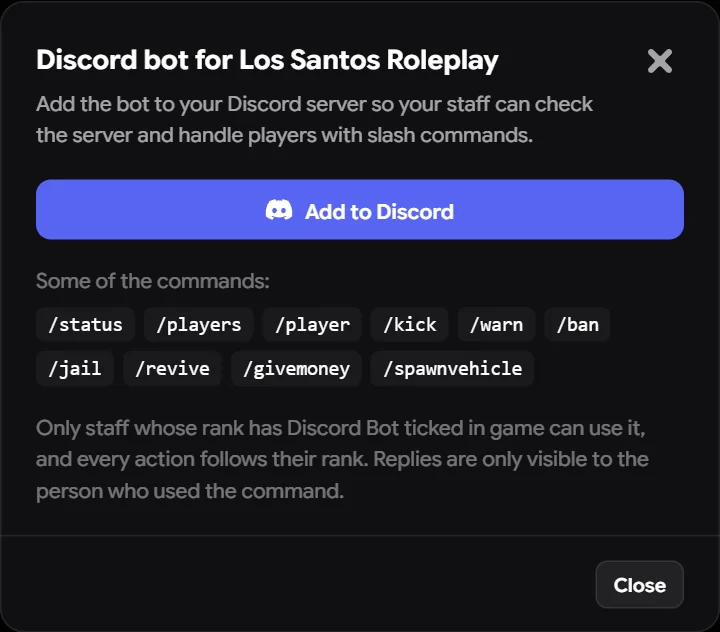
-
Discord asks which server to add the bot to. Pick yours and click Authorize. You need the Manage Server permission in that Discord server.
-
You are sent back to the panel, which now shows your Discord server as connected.
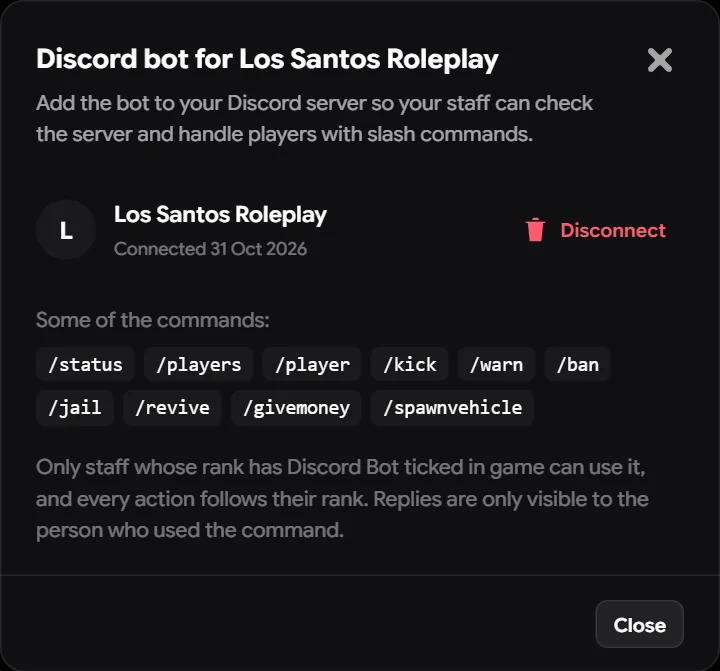
The commands show up in your Discord server shortly after. To remove the bot, click Disconnect in the same window.
The bot shows as offline in your member list. That’s normal: it answers commands without keeping a connection open.
Who can use it
A staff member can use the commands when:
- Their rank has the Discord Bot permission. In game, open Staff, edit the rank and turn on Discord Bot under Server.
- Their Discord account is on their staff profile. This happens on its own when they join the game with Discord open. You can also add it under Staff → edit member → Discord.
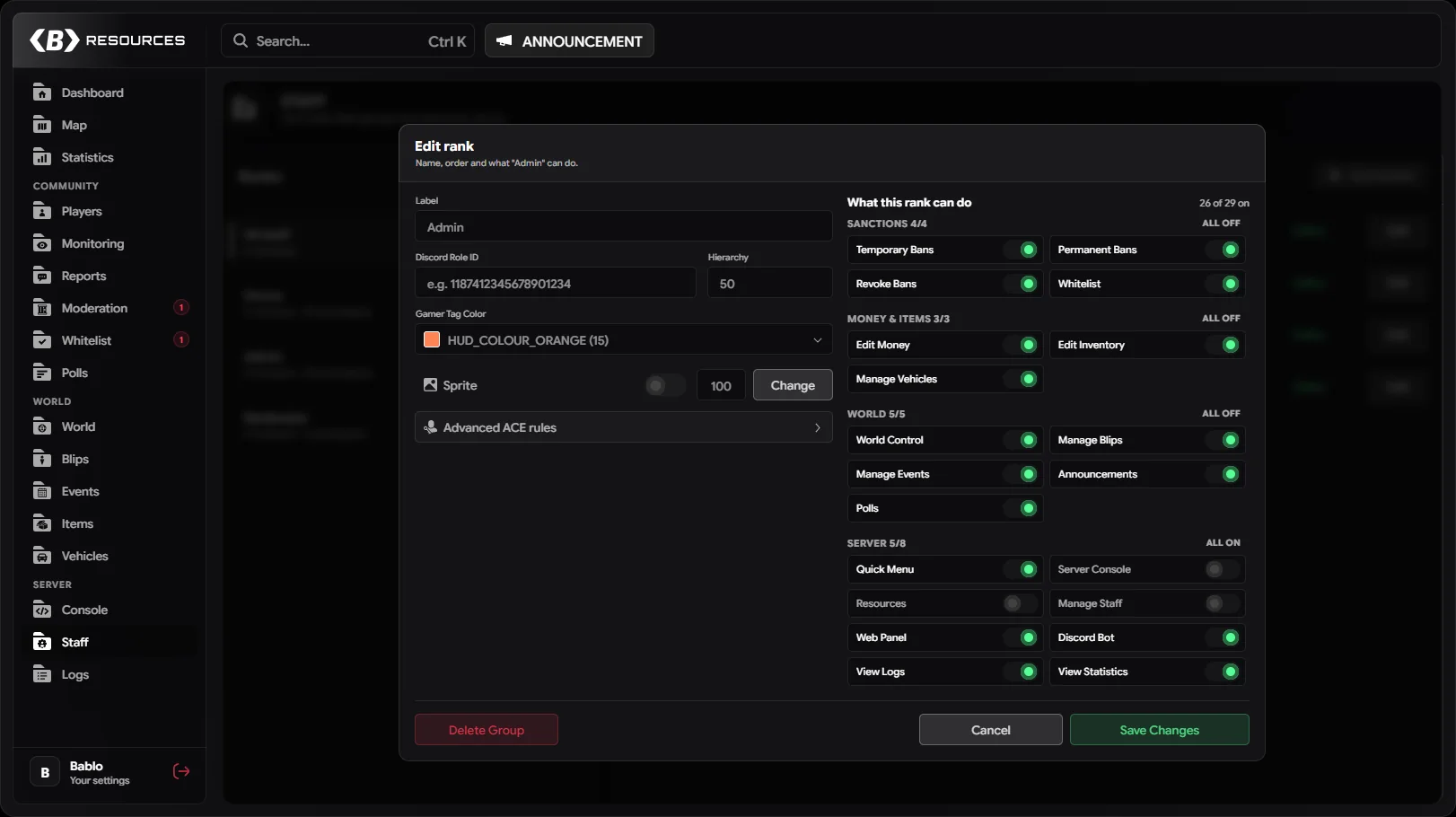
Each command also checks the rank’s other permissions. A Support rank without ban permissions can’t use /ban, the same as in game. Replies are only visible to the person who used the command, and every action is written to the action log with Discord bot as the place it came from.
Commands
| Command | What it does |
|---|---|
/status | Server status: players, uptime, CPU, memory and server tick. |
/players | Players online right now. |
/player | A player’s card with buttons to act on them. See below. |
/kick | Kick a player. |
/warn | Warn a player. |
/ban | Ban a player, for a set time or for good. |
/unban | Remove a ban. |
/jail | Jail a player for a number of minutes. |
/unjail | Release a player from jail. |
/freeze and /unfreeze | Freeze or unfreeze a player. |
/heal | Heal a player to full health. |
/revive | Revive a downed player. |
/kill | Kill a player. |
/slap | Slap a player. |
/explode | Blow up a player. |
/giveitem | Give an item to a player. |
/givemoney | Give cash or bank money to a player. |
/setjob | Set a player’s job and grade. |
/givemodel | Change a player’s ped model. |
/spawnvehicle | Spawn a vehicle for a player. |
/announce | Send an announcement to everyone in game, as a banner or a notification. |
/banlist | Recent bans. |
/vlookup | Look up a vehicle model. |
/whitelist | Turn the whitelist on or off, or add, remove and check a player. |
/events | Upcoming server events. |
Player, item, job and vehicle options autocomplete while you type, using what is on your game server right now.
The player card
/player shows the player’s name, status, server ID, ping, citizen ID, job, gang, warnings, money, health, armour and date of birth. Under the card are buttons for the most common actions:
- Revive, Freeze, Slap, Kill
- Warn, Kick, Jail, Ban (these ask for a reason, and a duration where needed)
- Give item, Give money, Set job, Spawn vehicle
- Refresh and Identifiers
The game server has to be online and linked to the web panel for the commands to work. If it isn’t, the bot says so.
Discord role sync
Role sync gives players a staff rank from their Discord roles. When someone gets your “Moderator” role in Discord, they become a Moderator in game. When the role is taken away, they lose the rank again.
It only works one way, from Discord to the game. Staff you add by hand in game and owners are never changed by it.
1. Create your own Discord bot
Role sync reads roles with your own bot, not the shared one. Follow Your Own Discord Bot to create it, put its token in server.cfg and invite it to your Discord server:
set bablo_admin_discord_token "your bot token"The same token also gives staff their Discord profile pictures in the admin menu.
2. Link Discord roles to ranks
- In Discord, turn on Developer Mode under User Settings → Advanced.
- Right-click a role under Server Settings → Roles and click Copy Role ID.
- In game, open Staff, edit the matching rank and paste the ID into Discord Role ID. Repeat for every rank you want to sync.
3. Turn it on
- In Discord, right-click your server icon and click Copy Server ID.
- In game, open Your settings → Discord, turn on Add staff from their Discord roles and paste the server ID.
- Click Sync now.
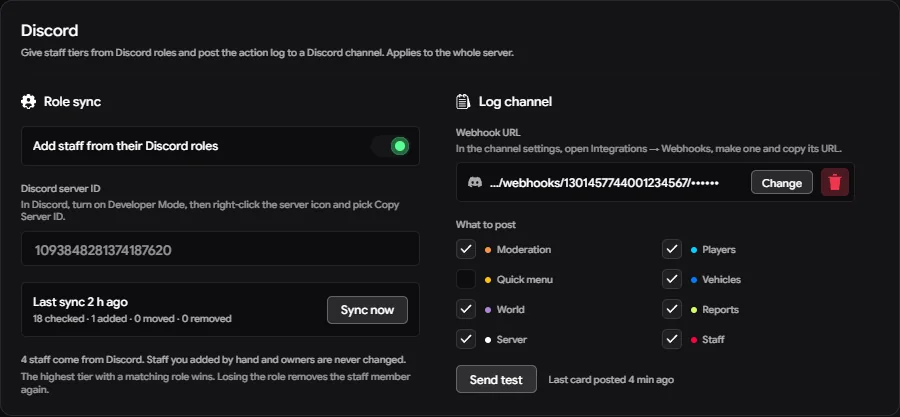
The card shows the last sync and how many players were checked, added, moved and removed. If something is wrong, it tells you why in red, for example a refused token or a bot that isn’t in your Discord server.
You need the Manage Staff permission to see this card.
How it decides
- A player is checked when they join, every 10 minutes while they are online, and when you press Sync now.
- If a player has several linked roles, the rank with the highest hierarchy wins.
- Players added by the sync get a small Discord mark next to their rank on the Staff page.
- If you change the rank of a synced member by hand, the sync stops managing them and leaves them where you put them.
- Staff you added by hand,
Config.Ownersand players with the owner ACE are never changed. - Turning the sync off keeps everyone it added. They just stop being updated.
The sync can only add players who have joined your game server at least once, because their game account has to be linked to their Discord. Someone who only has the role in Discord gets their rank the first time they join.
Discord log channel
Post everything that ends up in the action log to a Discord channel: bans, kicks, money changes, staff changes and more.
- In Discord, open the channel settings, then Integrations → Webhooks → New Webhook. Copy the webhook URL.
- In game, open Your settings → Discord, paste the URL under Log channel and click Save.
- Tick the categories you want posted. Every category is on by default.
- Under Who did it, choose what each card shows about the people involved. Both are on by default:
- Mention the staff member shows them as a clickable @mention next to their name. Mentions inside log cards never ping anyone.
- Show Discord IDs and licenses adds a line with the Discord ID and license of the staff member and of the player it was done to.
- Click Send test. A test card shows up in the channel.
Each log entry becomes one card with who did it, the target, where it came from (in game, web panel, Discord bot or console) and the details, coloured by category. When many things happen at once, the cards are grouped into one message to stay within Discord’s limits.
After saving, the card only shows the webhook ID. The secret part of the URL is never sent back to anyone.