

Web Panel
The web panel is the same admin menu, full screen in your browser at panel.babloresources.dev. Staff sign in with Discord and see exactly what their rank allows in game. Everything runs on your game server: the panel only passes messages between the browser and your server, so your data never leaves it.
The game server connects out to the panel. You don’t need to open any port, change your firewall or run a website.
Set up your server
Only the server owner does this once. It takes about two minutes.
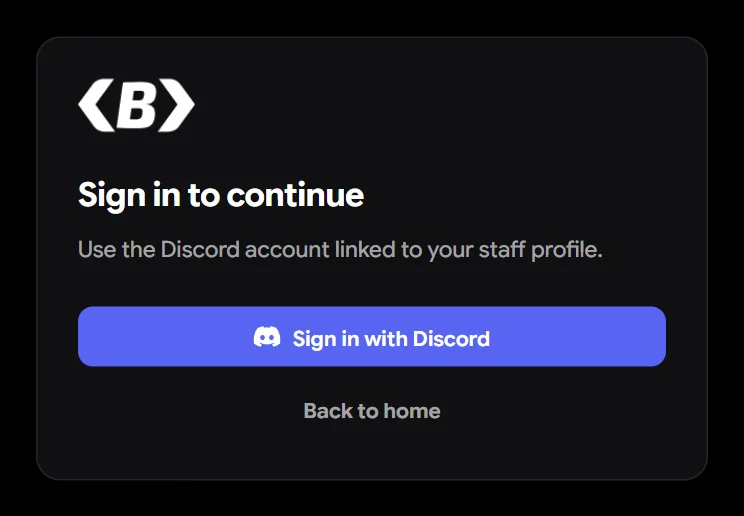
1. Sign in with Discord
Open panel.babloresources.dev and click Sign in with Discord. The Discord account you use becomes the owner of the server on the panel and always has full access there.
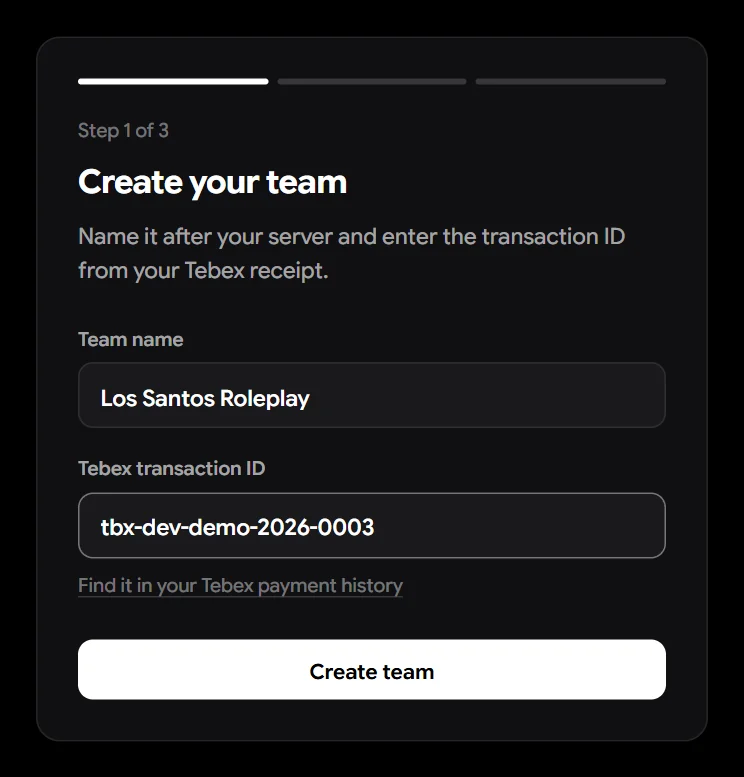
2. Add your server
Give the server a name and paste the Tebex transaction ID of your Bablo Admin purchase. You find it in the receipt e-mail from Tebex. It either starts with tbx- or is a 40-character code like 44304397ab1b91137d1ba68c7c58c07d30cfd523. Each purchase links one server.
3. Add the key to server.cfg
The panel creates an API key and shows the line to add to your server.cfg. Copy it right away: the key is only shown once.
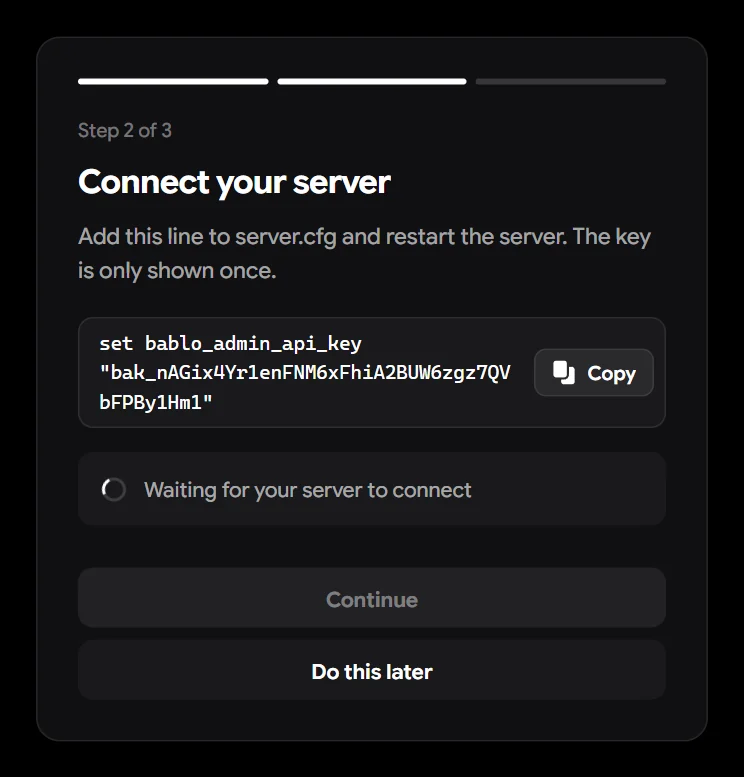
set bablo_admin_api_key "bak_..."Put the line above ensure bablo-admin and restart your server. Keep this page open: it waits for your server.
Use set, not setr. With setr every player who joins can read your key. See Installation.
4. Wait for the connection
As soon as the game server connects, the panel shows Connected and the server console prints web panel: connected. Click Continue.
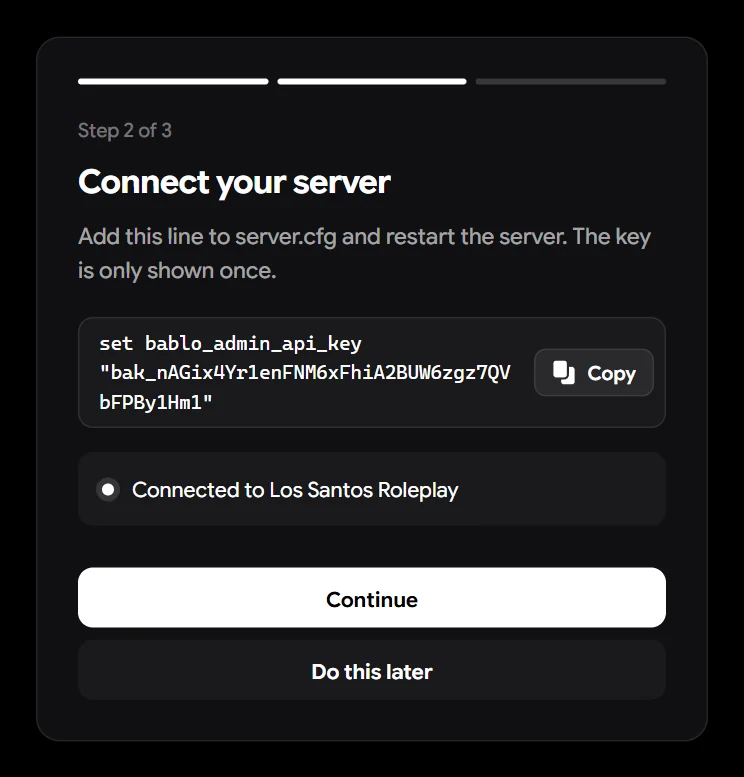
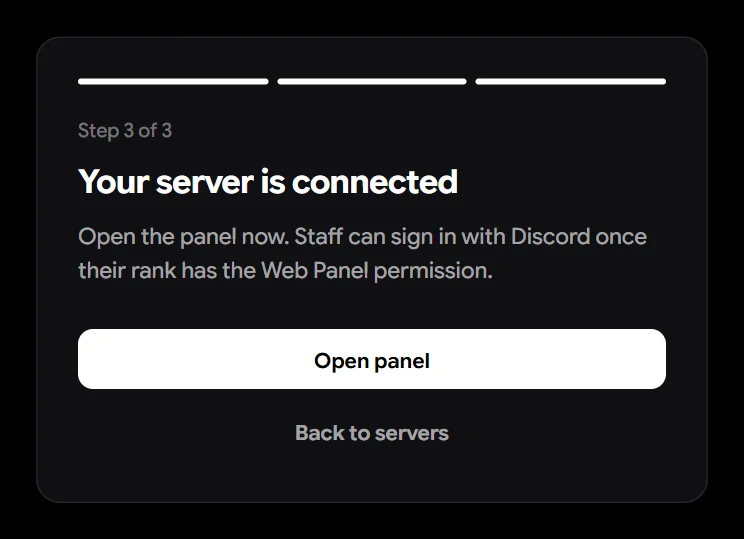
Click Open panel to start. You can also choose Do this later on step 2 and add the key whenever you are ready; the server stays in your list.
Your servers
The server list shows every server you own or are staff on, whether it’s online, how many players are on and how many staff can open it.
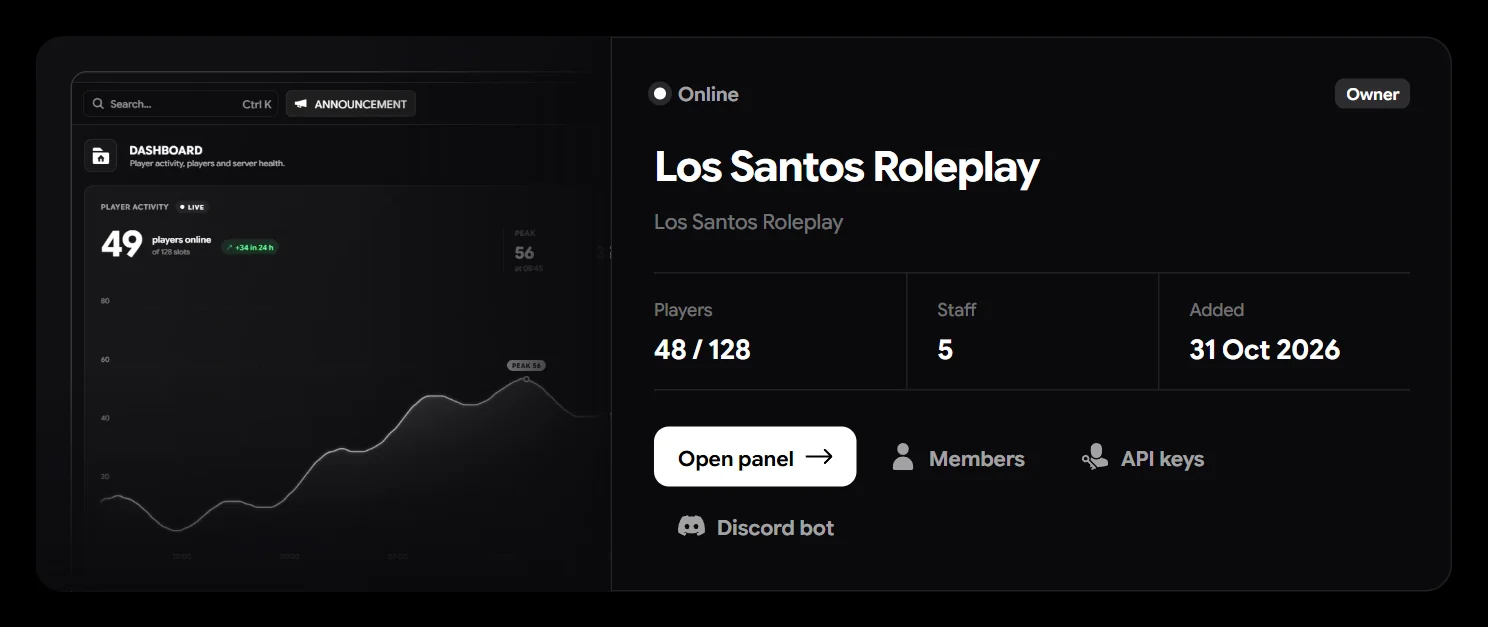
| Button | What it does |
|---|---|
| Open panel | Opens the admin menu for this server, full screen. |
| Members | Shows everyone who can open this panel. |
| API keys | Create and revoke the keys your game servers use. Owner only. |
| Discord bot | Adds the Bablo Admin bot to your Discord server. Owner only. See Discord Bot. |
| Delete | Removes the server from the panel. Owner only. See Delete a server. |
| Add server | Links another game server with another purchase. |
Delete a server
Click Delete on the server card, type the server’s name and click Delete server. Its API keys stop working right away, the game server is disconnected and the Discord bot leaves your Discord server. Nothing on your game server is deleted: staff, bans and logs stay in your database.
The purchase is free again afterwards, so you can add the server again with the same Tebex transaction ID.
Give your staff web access
Staff don’t need a separate account. A staff member can sign in when both of these are true:
- Their rank has the Web Panel permission. In game, open Staff, edit the rank and turn on Web Panel under Server. Ranks without it can still use the menu in game.
- Their Discord account is on their staff profile. This happens on its own the first time they join the game with Discord open, or the first time they sign in to the web panel after playing on your server. You can also add it by hand: Staff → edit member → Discord.
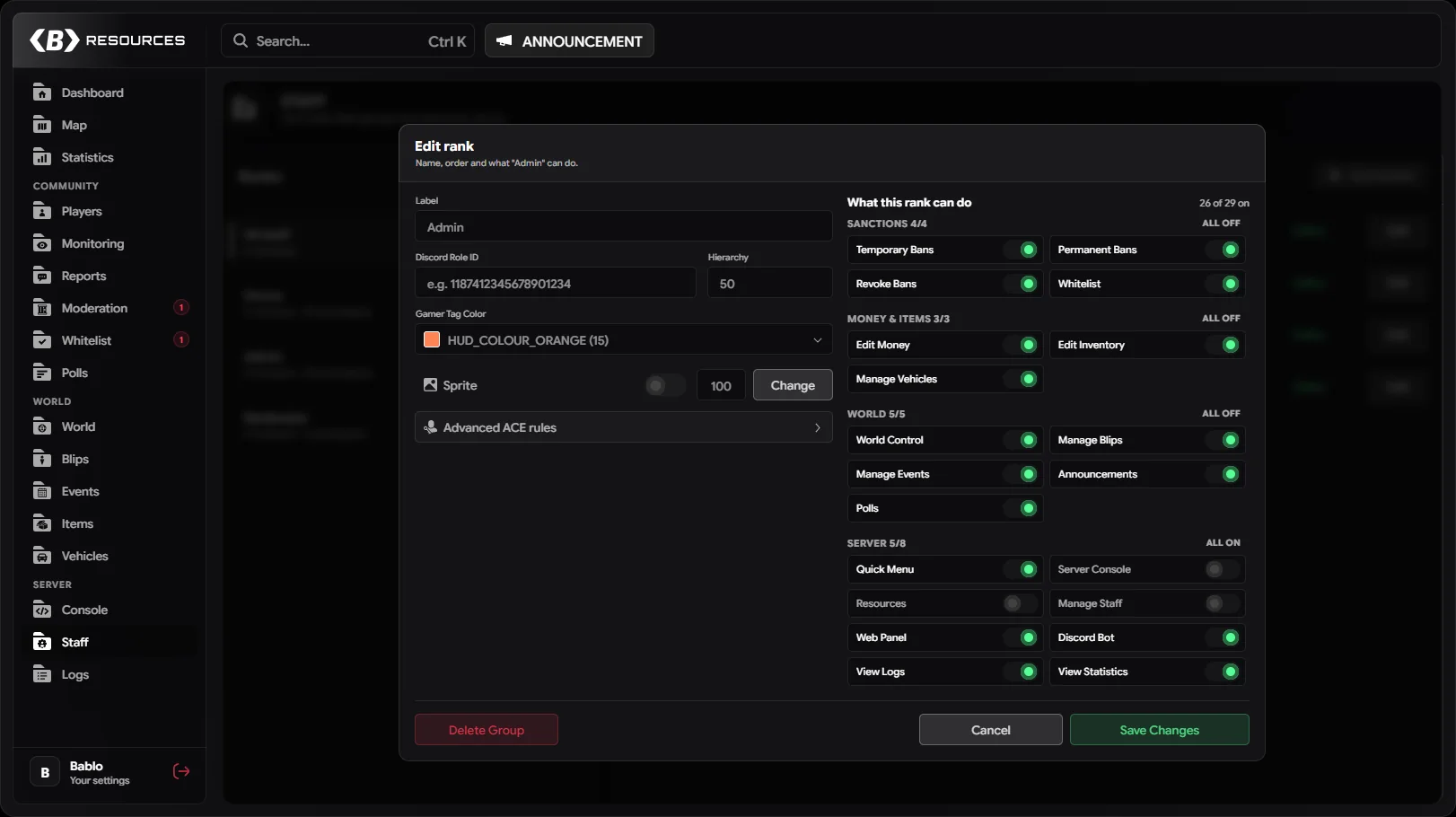
Everyone who can open the panel is listed under Members on the server card. Changes in game show up there within a few seconds.
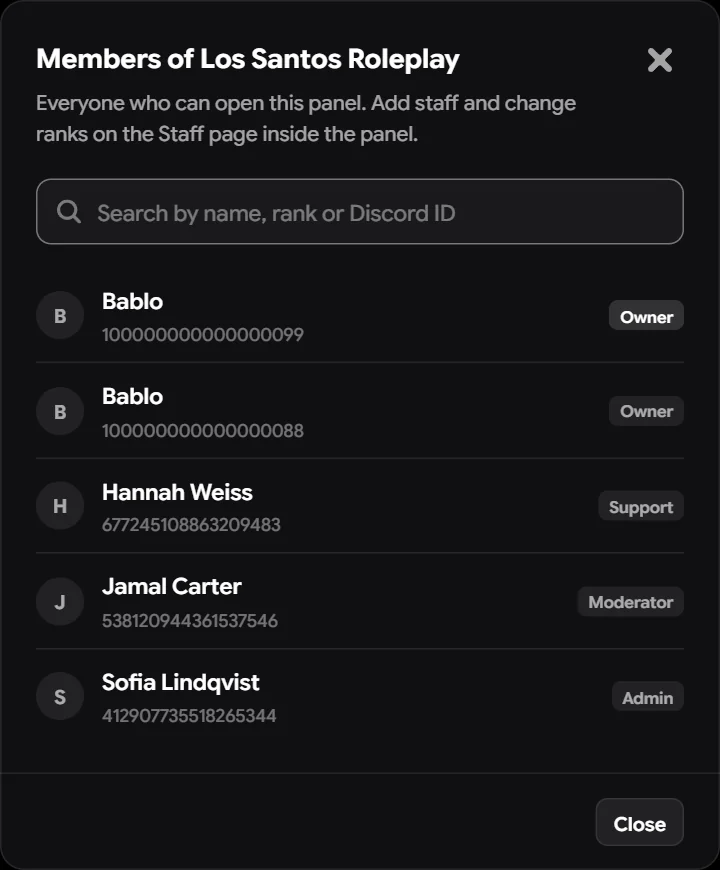
Everything a staff member does on the web is checked against their rank on your game server, the same way as in game, and is written to the action log with Web panel as the place it came from.
API keys
A key links one game server to the panel. You can have more than one, for example one for your live server and one for a test server.
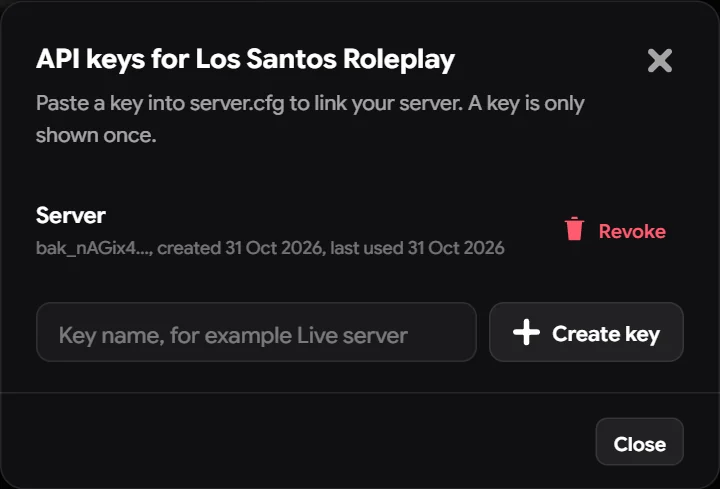
- Create key: give it a name and copy the
set bablo_admin_api_keyline. The key is only shown once. - Revoke: the key stops working right away and the server using it is disconnected. Use this if a key leaked, then create a new one.
The list shows the start of each key and when it was last used, so you can tell which server uses which key.
What works on the web
Every page of the admin menu works in the browser, including Monitoring and the live view of reports. Things that need your own game client, such as the quick menu, noclip or teleporting yourself, are only in game.
If the live view of a player stays black on the web or in game, see TURN Server.
Troubleshooting
The panel says my server is offline
web panel: connected means it works. not linked means bablo_admin_api_key is missing from server.cfg. the panel did not accept bablo_admin_api_key means the key is wrong or was revoked: create a new one under API keys. After a rejected key the server waits five minutes before trying again, so restart it after fixing the key.