
Your Own Discord Bot
Bablo Admin can use a Discord bot of your own for two things:
| Feature | Does the bot have to be in your Discord server? |
|---|---|
| Staff profile pictures from Discord | No. Any bot token works. |
| Discord role sync | Yes. The bot reads the roles of your members. |
This is a different bot from the shared Bablo Admin bot that runs the slash commands. That one you add from the web panel and it needs nothing in server.cfg.
Without your own bot everything else still works. Staff then show Discord’s default avatar, and role sync stays off.
1. Create the application
-
Open the Discord Developer Portal and sign in with your Discord account.
-
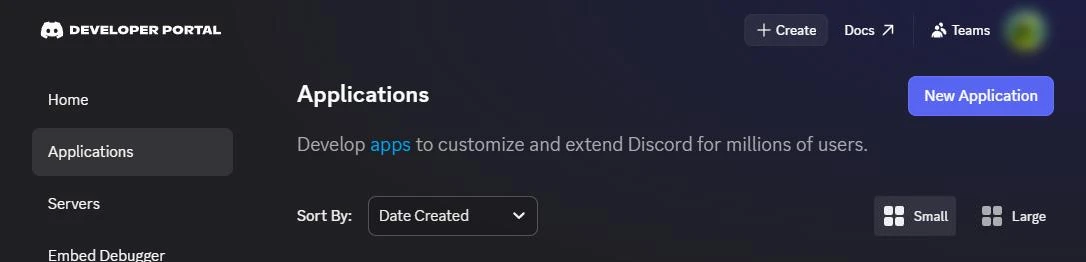
Click New Application in the top right.
-
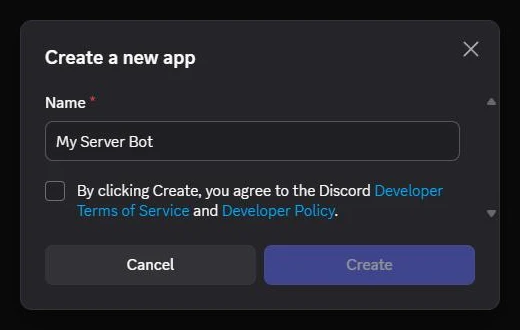
Give it a name, for example the name of your server. Players never see it. Tick the box to accept Discord’s terms and click Create.
2. Make the bot private (recommended)
A new bot is public, so anyone with its link could add it to their server. Make it private so only you can:
-
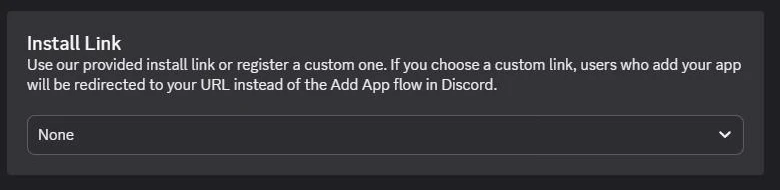
Open Installation in the menu on the left. Under Install Link, pick None and click Save Changes. Discord doesn’t let a private bot keep its own install link, so this has to come first.
-
Open Bot in the menu on the left, turn off Public Bot and click Save Changes.
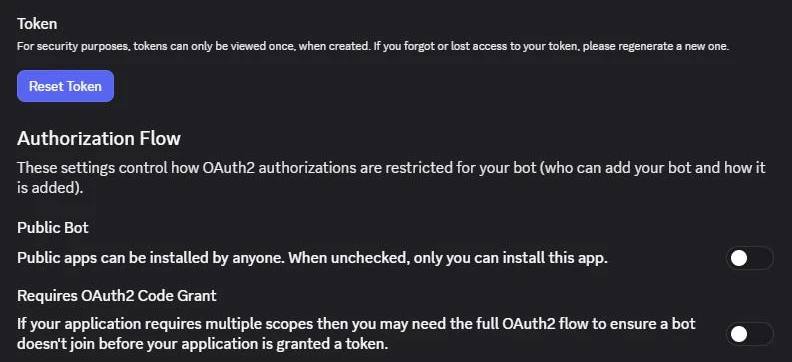
You don’t need any of the Privileged Gateway Intents further down that page. Leave them off.
3. Copy the bot token
- On the same Bot page, click Reset Token and confirm. Discord may ask for your two-factor code.
- Click Copy. Discord shows the token only once, so paste it somewhere safe right away.
The token is the password of your bot. Never share it, never post it in a ticket and never put it in config.lua.
4. Add the token to server.cfg
Add this line above ensure bablo-admin and restart the server:
set bablo_admin_discord_token "your bot token"Use set, never setr. With setr every player could read your token.
That’s all you need for staff profile pictures. Each staff member’s picture is fetched from Discord when they join.
5. Invite the bot to your Discord server (role sync only)
Skip this step if you only want profile pictures.
-
Open OAuth2 in the menu on the left and scroll down to OAuth2 URL Generator.
-
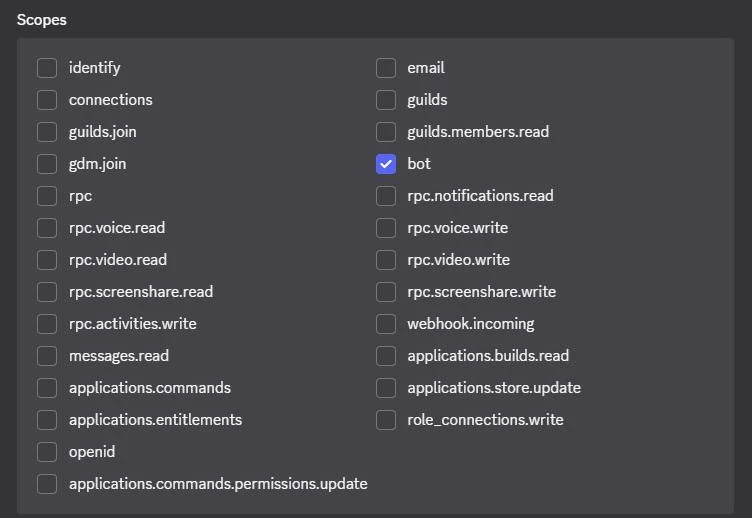
Tick bot under Scopes.
-
A Bot Permissions list appears below. Leave it all empty: the bot only reads roles, it never changes anything in your Discord.
-
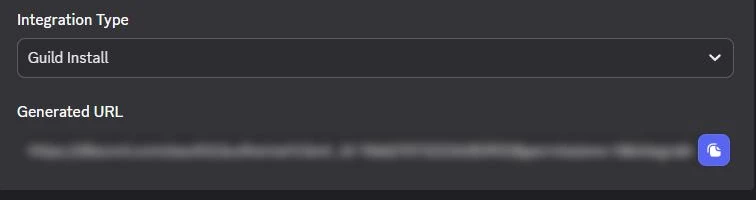
Leave Integration Type on Guild Install, copy the Generated URL at the bottom with the copy button and open it in your browser.
-
Pick your Discord server and click Authorize.
Then link your roles to ranks and turn role sync on, as described in Discord role sync.
Check that it works
- The server console prints nothing about the Discord token after the restart.
- In game, Your settings → Discord shows no red error.
- Staff who join get their Discord picture in the admin menu.
Discord refused the bot token
server.cfg and restart the server. Until the token changes, Bablo Admin stops asking Discord with the refused one.